Run Alby Hub with AWS Lightsail
Run your own Alby Hub on AWS Lightsail using an Ubuntu instance, Docker Compose, and persistent storage on your server.
Prerequisites
AWS Lightsail is the simplest way to run Alby Hub on AWS.
It gives you a cloud server with predictable monthly pricing, a browser-based SSH console, and simple firewall settings.
Before you begin, make sure you have:
02
Access to Amazon Lightsail
03
Basic familiarity with running terminal commands
AWS Lightsail occasionally offers free trial periods or introductory credits for eligible accounts. These can be enough to run a personal Alby Hub while you're getting started. AWS may still require billing details when creating an instance, and standard Lightsail pricing applies once any free usage has been exhausted.
See their pricing page for more details.

Deploy Alby Hub on AWS Lightsail
01
Create a Lightsail instance
Open the AWS Lightsail console and create a new instance.
Use the following options:
Platform: Linus/Unix
Blueprint: OS Only
Operating system: Ubuntu 24.04 LTS
Instance plan: General purpose
Recommended size: 2 GB memory, 2 vCPUs, 60 GB SSD
Enter an instance name that helps you recognize this server later, for example AlbyHub.
Then click Create instance.
02
Open your Lightsail instance page.
Go to the Connect tab and click Connect using SSH.

This opens a browser-based SSH terminal where you can run commands on your server.
You can also connect from your own terminal using SSH if you prefer, but the browser-based SSH option is the easiest way to get started.
03
Update the server
In the SSH terminal, update the package list and upgrade installed packages:
04
Install Docker and Docker Compose
Install Docker and Docker Compose:
Enable and start Docker:
05
Create a working folder for Alby Hub
Create a folder for your Alby Hub deployment:
The albyhub-data folder stores your Hub data on the server.
06
Add the Docker Compose file
You can either download the official Docker Compose file or create it manually.
Option A: Download the Docker Compose file
Run:
Option B: Create the Docker Compose file manually
Create a new file:
Paste the following content:
You can add restart: unless-stopped to restart Alby Hub automatically when the instance reboots. You will still need to unlock your Hub manually unless auto-unlock is enabled in Alby Hub settings.
Save the file and exit.
In nano, press Ctrl + O, then Enter, then Ctrl + X.
07
Start Alby Hub
Start Alby Hub in the background:
Check that the container is running:
You can also view the logs:
If the logs are running without repeated errors, Alby Hub has started successfully!
Press Ctrl + C to stop following the logs. This does not stop Alby Hub.
08
Open the Lightsail firewall ports
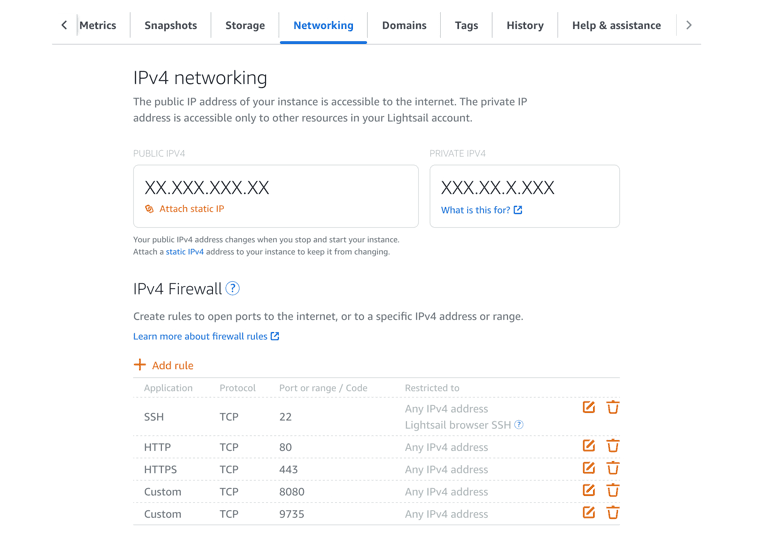
Alby Hub runs on port 8080.
Go back to your Lightsail instance page and open the Networking tab.
Application: Custom
Protocol: TCP
Port: 8080
Source: Your IP address, if you want to restrict access or Any IPv4, only if you intentionally want to make it publicly reachable
For better security, use your own IP address instead of allowing access from anywhere.
Open the Lightning port for LDK
If you plan to use LDK as your Lightning backend, also add:
Application: Custom
Protocol: TCP
Port: 9735
Source: Any IPv4
Port 9735 is used for Lightning peer communication.
You do not need to open port 443 for the basic setup unless you configure HTTPS separately with a reverse proxy or custom domain.
09
Open Alby Hub in your browser
Copy the public IPv4 address of your Lightsail instance.
Open the following URL in your browser:
For example:
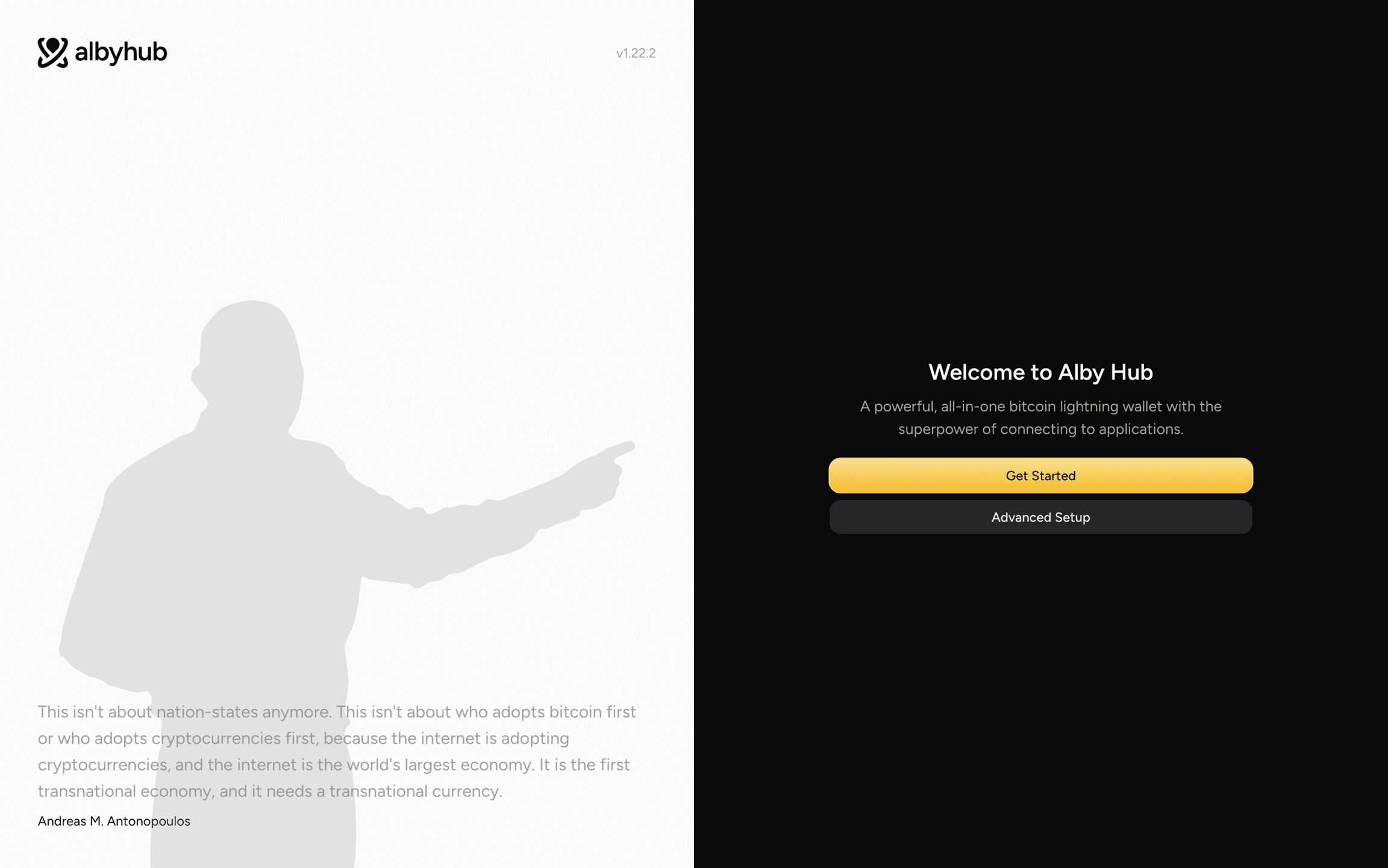
You should see the Alby Hub welcome screen.
10
Set up Alby Hub
Click Get Started and follow the setup flow in Alby Hub.
During setup, save any important recovery or backup information shown by Alby Hub. Your Hub data is stored on your Lightsail instance, but you should still keep your own backup so you can recover or migrate your Hub later.
How to update Alby Hub on AWS Lightsail
Alby Hub will show an update banner inside the app when a new version is available.
When you see the update banner, connect to your Lightsail instance again and update your deployment.
Go to your Alby Hub folder:
Pull the newest image:
Recreate the container with the new image:
Check that Alby Hub started cleanly:
If there is no new Alby Hub version available, docker compose pull may pull the same image again. You only need to update when Alby Hub shows an update banner or when you know a new release is available.