Run Alby Hub with Fly.io
Run your own Alby Hub on Fly.io using the official Alby Hub Docker image and a simple fly.toml configuration.
Prerequisites
Fly.io is a good option if you want to self-host Alby Hub in the cloud without managing a full server manually. This guide walks you through creating a Fly.io app, configuring persistent storage, deploying Alby Hub, opening it in your browser and updating it later.
Before you begin, make sure you have:
Fly.io may require billing details before you can deploy an app. Depending on Fly.io's current pricing and your app usage, charges may apply. See their pricing page for more details.

Deploy Alby Hub on Fly.io
01
Sign into your Fly.io via the CLI
Run the following command:
When your browser opens to the Fly.io sign-in screen, enter your user name and password to sign in.
After the login is complete, return to your terminal.
02
Create a new folder on your computer for this Fly.io deployment. For example:
This folder will store your fly.toml configuration file.
03
Create the fly.toml configuration file
Inside the folder, create a file named fly.toml
Paste the following configuration into the file:
Change the name 'Alby-Hub' to a custom name. For example: 'My-AlbyHub'
You can also change the primary_region value if you want to deploy Alby Hub in a different Fly.io region. Choose a region close to where you will usually access your Hub. Check Fly regions for more information.
04
Launch Alby Hub on Fly.io
Make sure you are still inside the folder where your fly.toml file is saved.
During setup, the Fly.io CLI may ask a few questions:
Fly.io will now create and deploy your Alby Hub app using the Docker image and settings from your fly.toml file.
If you see a message similar to this, your deployment has started successfully:
05
Open your Alby Hub
After deployment, open your Fly.io dashboard and go to the Apps section.
Click on the app to access it on your browser.

06
Set up Alby Hub
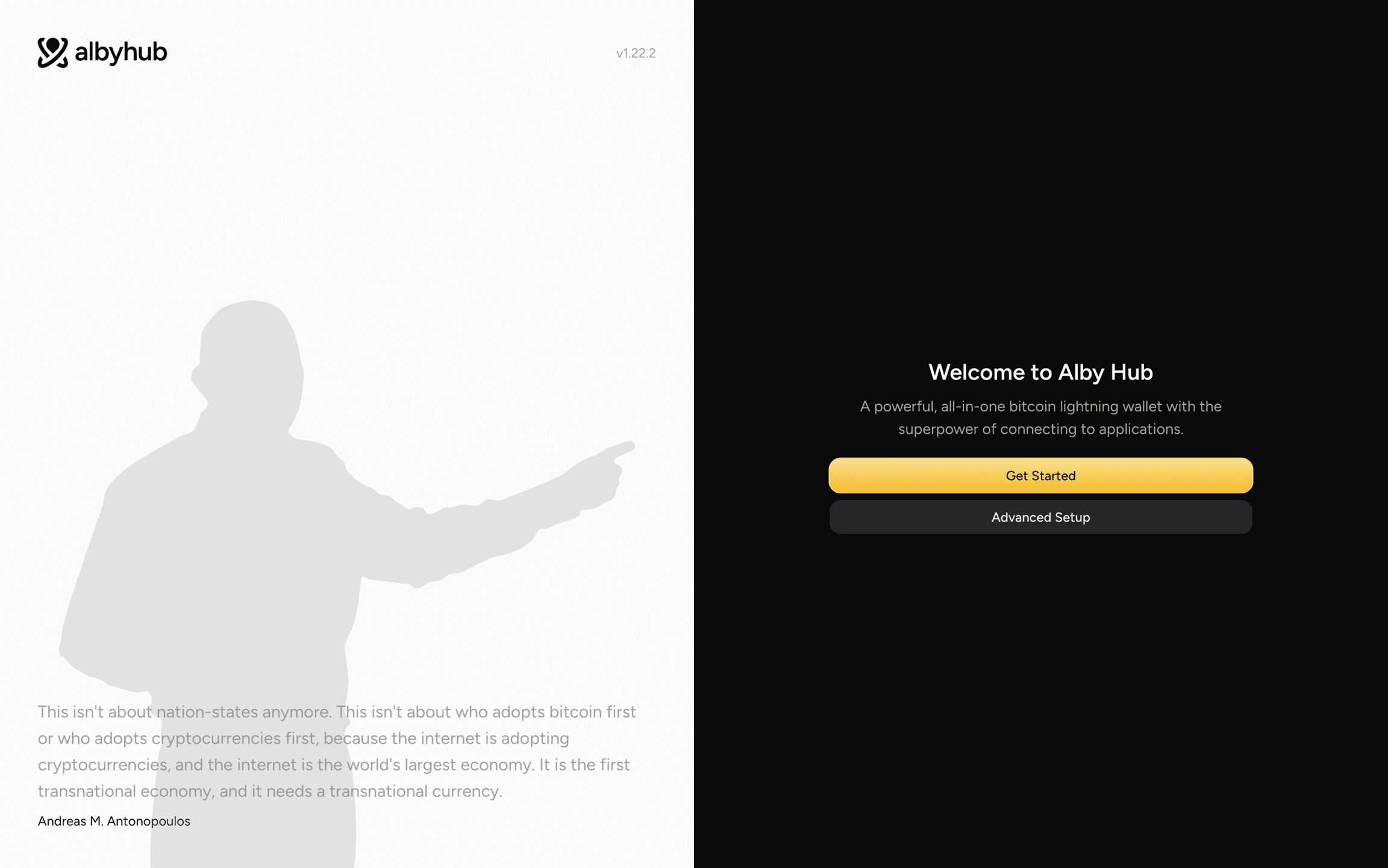
Click Get Started and follow the setup flow in Alby Hub.
During setup, make sure you save any important recovery or backup information shown by Alby Hub. Your Hub uses persistent storage on Fly.io, but you should still keep your own backups so you can recover or migrate your Hub later.
How to update Alby Hub on Fly.io
In Powershell on Windows, navigate to the directory of your fly.toml with cd [directory path]. Then type fly deploy in Powershell. You'll see further information printed in Powershell.