Run Alby Hub with Render.com
Self-host Alby Hub in the cloud on Render without managing a server manually.
Prerequisites
Render is a good option if you want to self-host Alby Hub in the cloud without managing a full server manually. This guide walks you through deploying Alby Hub on Render using the Deploy to Render button, reviewing the Blueprint, opening your Hub in the browser, and updating it later from the Render dashboard.
Before you begin, make sure you have:
Render may require billing details before you can deploy Alby Hub because the Blueprint creates persistent disk storage. Depending on Render’s current pricing and your app usage, charges may apply. See their pricing page for more details.

Deploy Alby Hub on Render
01
Click the Deploy to Render button
Click the button below to start the Alby Hub deployment flow:
Render will ask you to sign in or create an account before continuing.
02
Configure the Blueprint
Render will show a form for deploying Alby Hub from a Blueprint. Enter a Blueprint name — this is only used to identify the deployment inside your Render dashboard.
You do not need to change the other fields. Leave the remaining Blueprint settings as they are and continue to the next step.
03
Review the Blueprint configuration
Render will show the resources that will be created for Alby Hub. You should see a web service and a persistent disk.
Render will also show the estimated pricing for the deployment. Review the pricing information carefully before continuing.
04
Deploy the Blueprint
When everything looks correct, click Deploy Blueprint.
Render will now create and deploy your Alby Hub service.
05
Open your Alby Hub
After deployment, Render will take you to the Blueprint page.
From there, click Resources in the sidebar, select the albyhub web service, and open the URL shown on the service page.

06
Set up Alby Hub
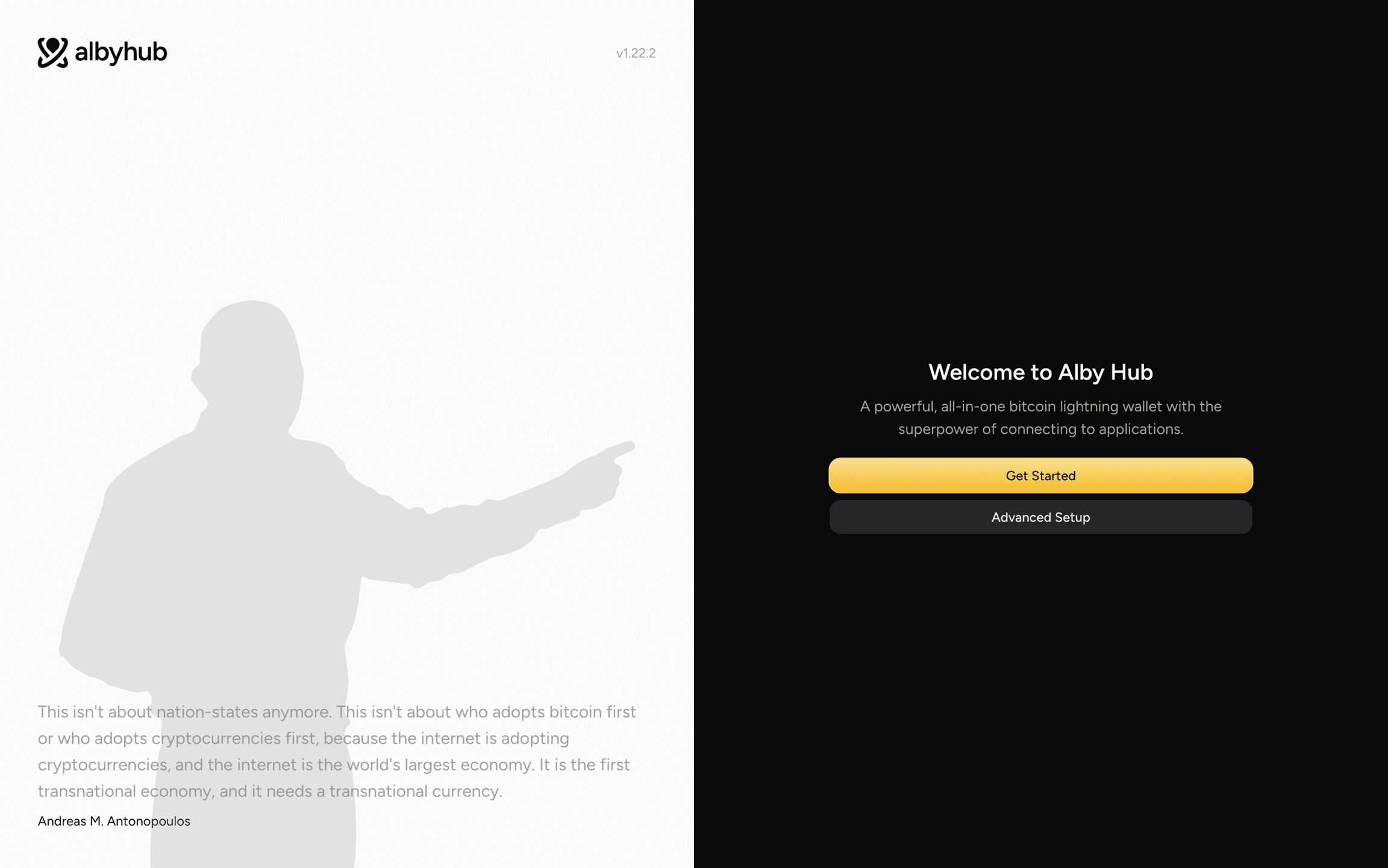
Click Get Started and follow the setup flow in Alby Hub.
During setup, save any important recovery or backup information shown by Alby Hub. Render provides persistent disk storage for the deployment, but you should still keep your own backup so you can recover or migrate your Hub later.
How to update Alby Hub on Render
Alby Hub will show an update banner inside the app when a new version is available. When you see the update banner, you can update your Hub deployment from the Render dashboard.
To update Alby Hub:
1. Open your Render dashboard
2. Go to your Alby Hub web service
3. Click Manual Deploy
4. Select Deploy latest reference

Render will redeploy Alby Hub using the latest available image.
After the deployment finishes, open your Alby Hub URL again and confirm that your Hub is running.